 DigitByte Software for Windows, Mac, iPhone, iPad, iPod – free download
In this tutorial, we will tell you how to create Page-flipping eBook from your PDF files with amazing page-flipping animations and sound in batch way with Flip PDF software
About Flip PDF for Windows:
Flip PDF is your easy way to batch convert ordinary PDF files into stunning booklets with amazing page-flipping animations and sound! Imagine being able to create digital magazines and catalogues that behave like actual paper books without any programming work! Once you’ve created your page-flipping masterpiece in Flip PDF, you can publish it to the web, via email, and even distribute it on CD-ROM, all without paying royalties!
Note: You will get a download manager from Regnow, then use it to download this app to create your flipping page eBooks.
Now, the following is the focus about how to use it to flip your PDF files as stunning book.
Firstly, download and install it, when you lunch it via the desktop shortcut  , you will get a main interface like below screenshot, There are some main interfaces you will see while using Flip PDF as below shows: Application Options, Import PDF, Template Settings, Language Option, Output, Upload Online and Batch Convert. You can enter into each page to get clear instructions for every detail option.

Now, let’s tell you the details in the following steps:
1. Click the “Import PDF” icon  to enter into Import PDF interface;
2. Click  icon to choose PDF file from your computer;
3. Click  icon to enter into template setting interface;
4. Define parameters for eBooks, such as Book, Tool Bar, Bookmarks, and then click the “Apply Change” icon  ;
;
5. Click “Convert to Flipping Book” icon  to enter into Output interface;
6. Choose Output Type from HTML, ZIP and EXE, here take  as example;
7. Click  to set Output Folder as “C:flipbook”, input File Name as “demo”;
8. At last, click  icon to output created page-flipping eBook. You can open the “flipbook” folder in “C:”, there are three files in this folder:

Open the “demo.html” file to view your created p00age-flipping book via Web Browser, such as Internet Explorer, Google Chrome, Firefox, etc. the following is the sample:
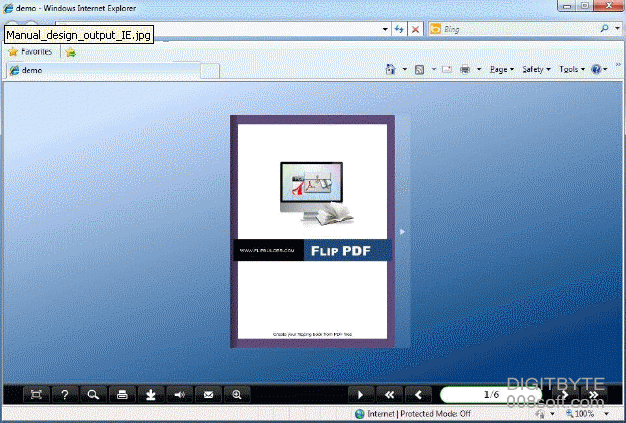
9. Output setting, there are 6 kinds of formats you can choose, they are HTML, ZIP, EXE, APP, Mobile version, Burn to CD
a. save as HTML format:
This output type is for uploading created page-flipping ebook onto websites. You can define HTML Title and other properties by clicking “Advanced” button: Set Keywords, Description or even Script in the below interface:

b. save as ZIP file
This output type is for compressing the created files into an integral ZIP package which can be sending out as attachment directly. You can also define HTML Advanced Settings by clicking “Advanced” icon. Your recipients just need to uncompress the ZIP file and then they can view the HTML flipbook instantly:

c. create as exe file
This type is for outputting flipbook as a single executive file, easy storing and easy viewing:

You can also define Icon and Opening Window Size in Advanced Settings:

d. App – If you want to make executable application to run on Mac devices, you can output as “*.app” format.

e. Mobile Version – 
You can even output Mobile Version while choosing HTML or ZIP format at the same time. After creating mobile versions, you just need to output all files online (including HTML, SWF, “files” and “mobile” folders), then you can visit the flipbook page through your mobile browser.
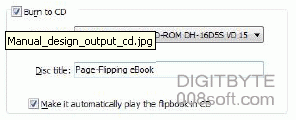
f. Burn to CD
After choosing output type, then check the option “Burn to CD”, set “CD Writer”, define “Disc title”.
Done! If you are interesting in this program, please download it from below URL, and get a free and wonderful trial!