 DigitByte Software for Windows, Mac, iPhone, iPad, iPod – free download
This guide will tell you how to convert you html to PDF in batch mode, by using our recommended software, you can batch convert HTML, dynamic web pages and dashboards into professional-quality documents in the popular PDF file format.
About A-PDF Html to PDF
It lets you instantly convert dynamic web pages into fully-formatted and professional-quality PDF file format. A-PDF Html to PDF retains the layout of the original web pages , and it supports all PDF file settings, such as PDF Compatibility, Auto-Rotate, Resolution, Compress settings of PDF document, Colors settings of PDF document, Fonts settings of PDF document. Simply drag and drop. Easily batch convert web pages into PDFs from your documents.
If this program need you obtain the source code for GPL Ghostscript, you can download it here: Download Chostscript 8.71
this will installs GPL Chostscript 8.71, GPL Chostscript displays, prints and converts PostScript and PDF files.
The following is the step-by-step:
1. lunch this app, A-PDF Html to PDF can be started either by launching the application via a desktop shortcut, or directly from within Windows/Windows Explorer. When you start the program, you will be presented with the primary screen.

2. Quick Convert Web Pages in Windows Explorer
Right click a Web (.htm, .html, .shtml) file in windows explorer, select “Convert to PDF…” from context-sensitive menu popped up, and choose a name, then the A-PDF
3. Html to PDF will convert the file to PDF quickly.
Using A-PDF Html to PDF in command line A-PDF Html to PDF can be used in command line also.
4. Batch Convert Mode
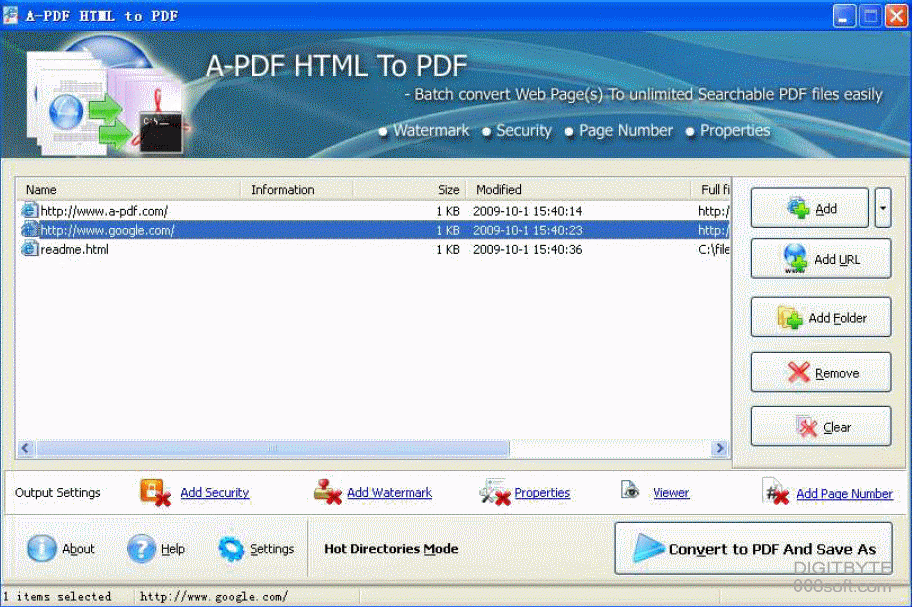
Select the option Batch Convert Mode and push the button Next >, a HTML TO PDF Batch Convert window will be opened.
5. Selecting Files
Clicking the Add icon then will open the standard file browse and select window. From that window you can navigate to the folder and find the HTML files you want to add to the list of files to be worked.
Alternatively, if you are using Windows Explorer to locate files, you have the convenience of being able to ‘drag and drop’ files into the document window.
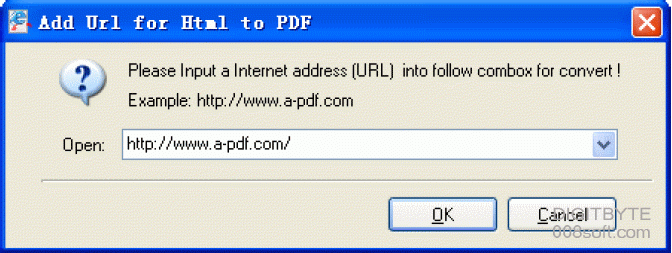
Clicking the Add icon hen will open the new window. From that window you can add Web URL to the document list of files
A-PDF Html to PDF even allows you to select all html files in a particular directory/folder by using the Add Folder button! Adding a directory also supports sub-folders.
Each added file is displayed in the document list window. You can view any of the files in the window by ‘double-clicking’ them. That will open Html files in your inetrnet explorer program.
You can click the Remove icon to remove selected files in list or you can clear all Docs by clicking the Clear icon
6. Convert HTML to PDF And Save As
Click the Convert to PDF And Save as icon to convert all of Web Pages in the document windows to PDF and save the resultant file to a directory which you selected.

Done! If you are interesting in this program, please download it from below URL, and get a free and wonderful trial!