 DigitByte Software for Windows, Mac, iPhone, iPad, iPod – free download
There is a guide about how to convert dvd to ipad for Windows users by using Bigasoft DVD to iPad Converter, which is a professional and powerful DVD iPad converter, is designed for iPad fans to enjoy favorite DVD on iPad1/2/3
Bigasoft DVD to iPad Converter, the professional and powerful DVD iPad converter, is designed for iPad fans to enjoy favorite DVD on iPad, iPad 2, iPad 3 anywhere and anytime. It can easily convert DVD to iPad video MP4, H.264 with high speed and excellent quality. The smart DVD to iPad audio converter can also encode DVD to iPad audio format MP3 in just one click.
Free download Bigasoft DVD to iPad Converter
Requirements:
Windows 2000/2003/XP/Vista and Windows 7
800MHz Intel or AMD CPU, or above; 512MB RAM or more
Now, let’s talk about how to convert DVD to iPad for Windows users
No.1 inport DVD movie
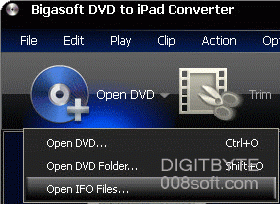
Bigasoft DVD to iPad Converter provides three methods to import your DVD movies:
- Open DVD – Click “Open DVD” and the program will let you browse your DVD disc inserted in your DVD drive, you can just select the DVD drive and click OK.
- Open DVD Folder – Click “Open DVD Folder” and the program will let you browse your DVD folder. If you have a DVD disc inserted in your DVD drive, you can just select the DVD drive and click OK. If you don’t have a DVD disc inserted in your DVD drive and your DVD movie is saved on your hard disc, you can locate the folder of your DVD movie, select the VIDEO_TS folder and click OK.
- Open IFO File – Click “Open IFO Files” and the program will let you browse your DVD IFO file. Then you can locate the folder of your DVD movie, the VIDEO_TS folder, select IFO files and click OK.
No.2 set output settings
After you select the titles or chapters you want to convert, you can set the output settings for the conversion under preview window and the DVD content list.
Audio Track: Select audio track for your selected file (either a title or a chapter) in the task list.
Subtitle: Select subtitle for your selected file (either a title or a chapter) in the task list.
Profile: Select output profile for your video. The supported formats include:
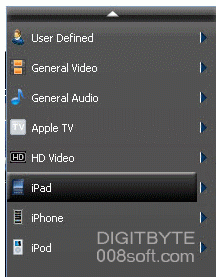
Click “setting…” button to open the Settings window.
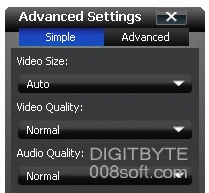
In the Video Settings, you can select Encoder, Frame Rate, Resolution and Bitrate to convert your movie.
In the Audio Settings, you can select Encoder, Channels, Bitrate and Sample Rate to convert your movie.
Note: When you choose the specific settings, the lower window will show the “Help” to explain the meanings of each setting.
Destination: Click “Browse” button to specify a location on your computer to save the converted movie. If you want to open the output folder, you can just click “Open Folder” button
No.3 Merge into one file
Bigasoft DVD to iPad Converter allows you to merge your selected contents into one file.
If you want to merge the selected contents into one file you can check the “Merge into one file” option. As default the merged file is named after the first selected file (either a title or a chapter).
- Click “Uncheck all” in “Edit” from the main menu.
- Select the titles you want to merge. The selected titles will be highlighted in yellow.
- Click “Merge” button to merge the selected video files
No.4 Trim Video
Bigasoft DVD to iPad Converter allows you to trim your movie, so you can capture your favorite clips from your movie. Click to open the Trim window, and follow the steps below to capture a clip from your movie.
There are three methods to set trim time:
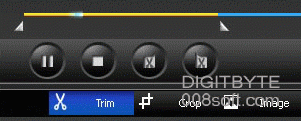
Method 1: Enter the start time in the Start Time box, then enter the end time in the End Time box.
Method 2: Drag the scissors bars under the preview window where you want to trim, the time will be shown in the Start Time box and End Time box for your reference.
Method 3: Click “X” when you want to begin your trimming. Click “X” where you want to stop your trimming.
Tips
- Click “Reset All” to restore the settings to defaults.
- Click “OK” to save the settings if you have completed video cropping.
No.5 Crop Video
Bigasoft DVD to iPad Converter allows you to remove the black edges around your movie video and customize your movie.
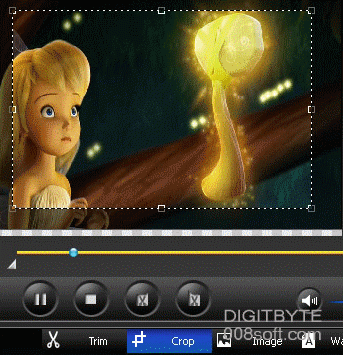
Click “Crop” to open the Crop Video window, then you can crop your video and set the zoom mode according to your need.
two ways to crop your video :
Method 1: Crop by adjusting the crop frame
The crop frame is the dotted line around the movie video. There are eight small adjustment boxes on the crop frame. Each adjustment box allows you to crop the movie video from a different position. To crop your movie video, you can just move your mouse cursor to an adjustment box and drag the crop frame.
Method 2: Crop by setting the crop values
There are four crop values on the lower right part of the crop window: Top, Bottom, Left and Right. You can set each value to crop your movie video, and the crop frame will move accordingly.
Set the Zoom Mode:
You can also set the output aspect ratio from the Zoom Mode according to your need. There are four choices available: Keep Original, Full Screen, 16:9 and 4:3.
Keep Original: Keep the aspect ratio of the crop size.
Full Screen: Stretch your cropped video to fit for the aspect ratio of the resolution setting.
16:9 : Stretch your cropped video to fit for the aspect ratio of 16:9.
4:3: Stretch your cropped video to fit for the aspect ratio of 4:3.
Note: After you crop your video and set the zoom mode, the result can be previewed in the Preview window of the program main interface.
No.6 convert your movie to iPad video format
When you get ready to convert your movie, click “Convert” to start conversion.
Before you start conversion, you can click “Preferences” button to adjust the settings related to conversion.
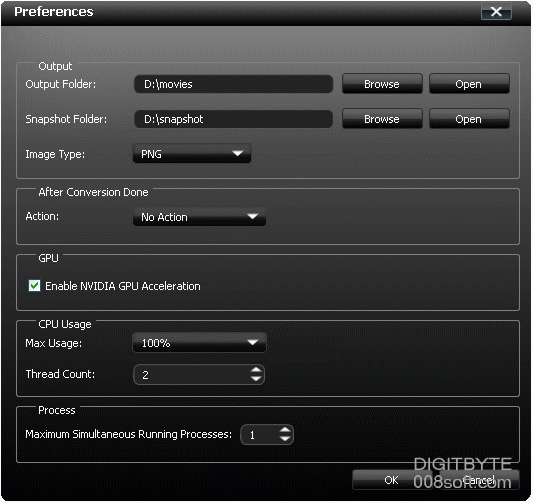
After Ripping Done: You can choose to “Shut Down” your computer or “No Action” after the conversion.
Enable NVIDIA GPU Acceleration: If you computer is equipped with NVIDIA GPU, this option will be automatically checked. The conversion speed will be accelerated 5X faster when converting DVD to video with H.264 codec.
CPU Usage: You can choose the max CPU Usage for your computer: 50%, 60%, 70%, 80%, 90%, 100%.
Done! if you are interesting in this program, just click below URL to get a free trial