 DigitByte Software for Windows, Mac, iPhone, iPad, iPod – free download
When we delete any file from the disk, the information is not erased completely from the drive but it is marked as available for new data to be written over it. The data which is deleted using the operating system remains on the data area as it is and can be recovered with some data recovery efforts and data recovery software. Therefore the need to fully eliminate data from a drive leads the requirement for such a tool that wipes/shreds out the data from the disk completely.
Max File Shredder will allow user to fulfill this requirement by feature Shred File/Folder. Max File shredder fills the file contents with zeroes with multiple passes and completely change the contents of the file so that if in case file is recovered by recovery efforts file can not have the original contents which is at the time of shredding. It contents only zeros after shredding. After it deletes file from the location.
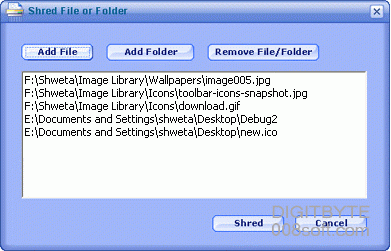
How to shred file or folder in Windows OS?
- Click on the Shred File/Folder button which gives a dialog to Add File/Folder in the list of shredding and Delete file from the shred list.
- Click on ‘Add File‘ to add any file to shred. Clicking on this option will give Open dialog to select particular file from any location. After selecting particular file from Open file dialog, file path will appear into the list box.
- Click on ‘Add Folder‘ to add any folder to shred. Clicking on this option will give Open dialog to select particular folder from any location. It will shred all file from the folder. Folder path will appear into the List box.
- To remove file/folder from list select file/folder from list and click on ‘Remove File/Folder‘ button.
- After making list of file and folders for shredding, Finally click on ‘Erase’ button to initiate process of shredding file/folders from list or click on cancel to cancel the selected process.
- Wait till completion of process. Process bar right on bottom of main screen indicates the process status and simultaneously updates Log in list box of main screen.
- You can stop the process by clicking on ‘Stop‘ button on the main interface.
- After completion of the process you will get the message box indicating process completion (Done!).
- You can see the Log which shows the files and folders shredded under File Folder Shred Option.
Tips of Max File Shredder
- To erase Read only files/folders close Max File shredder and change attribute to archive of files/folders those you want to shred.
- To shred in use files close these files and then start shred file folder option.
If you are interesting in this program, just get a free trial now